Quick Diagnostic Checklist
Most issues fall into one of four categories: network visibility, Android permissions, screen naming, or OEM battery management.
Network & Firewall
Port 24800 (TCP) open in your PC firewall, both devices on same local Wi-Fi.
Screen Name Match
Screen name in PC grid must match the device name shown in Input Leaf exactly.
Overlay & Injection
"Display over other apps" allowed, Shizuku or Accessibility enabled.
Battery Unrestricted
Exempt Input Leaf from battery saver so Android doesn't kill the background link.
Common Issues & Visual Fixes
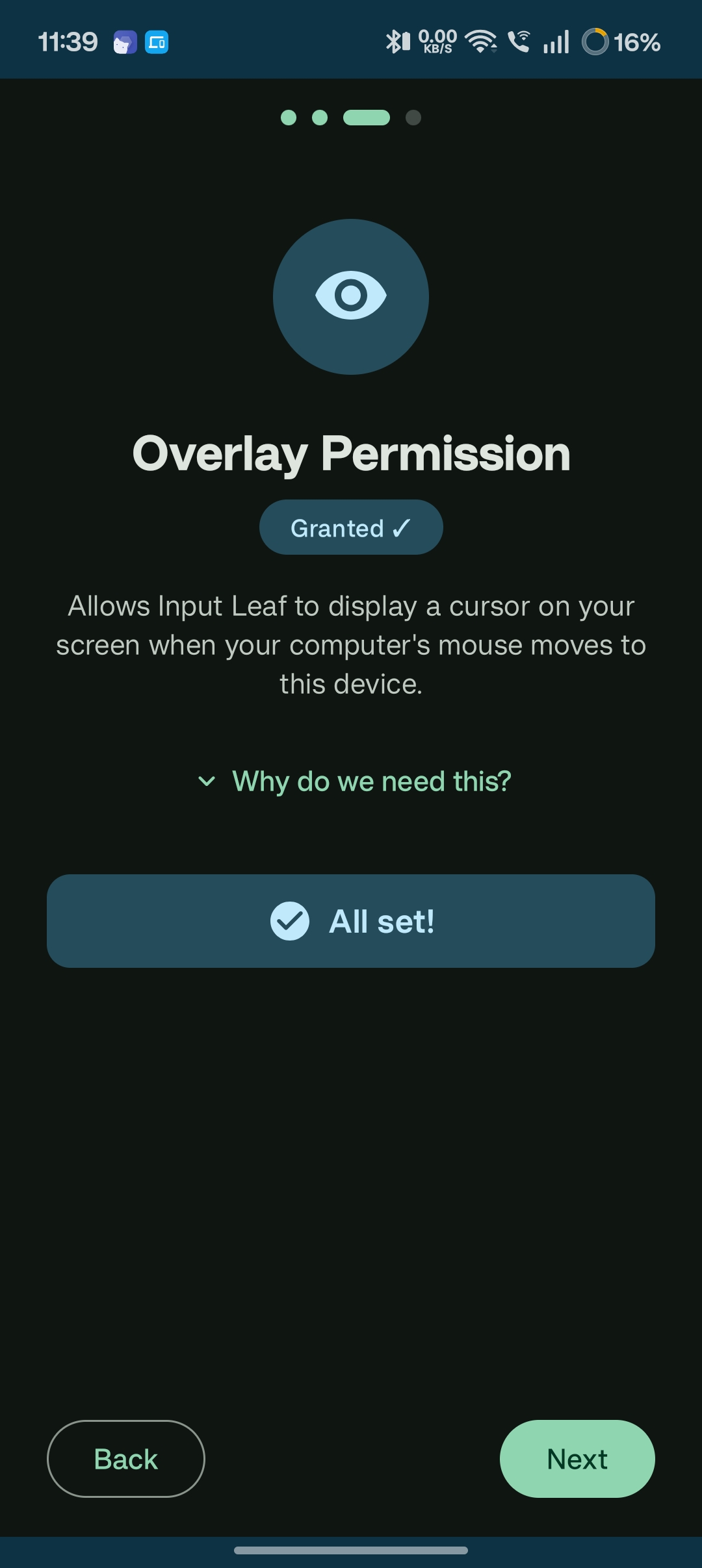
Virtual Mouse Cursor Missing or Invisible
Symptom: The connection status shows Connected, but no cursor appears on your Android screen when crossing the boundary.
Solution: Android requires explicit permission to draw on top of third-party applications:
- Open Android Settings → Apps → Special app access → Display over other apps.
- Find Input Leaf and toggle it to Allowed.
Connection Drops After Screen Locks
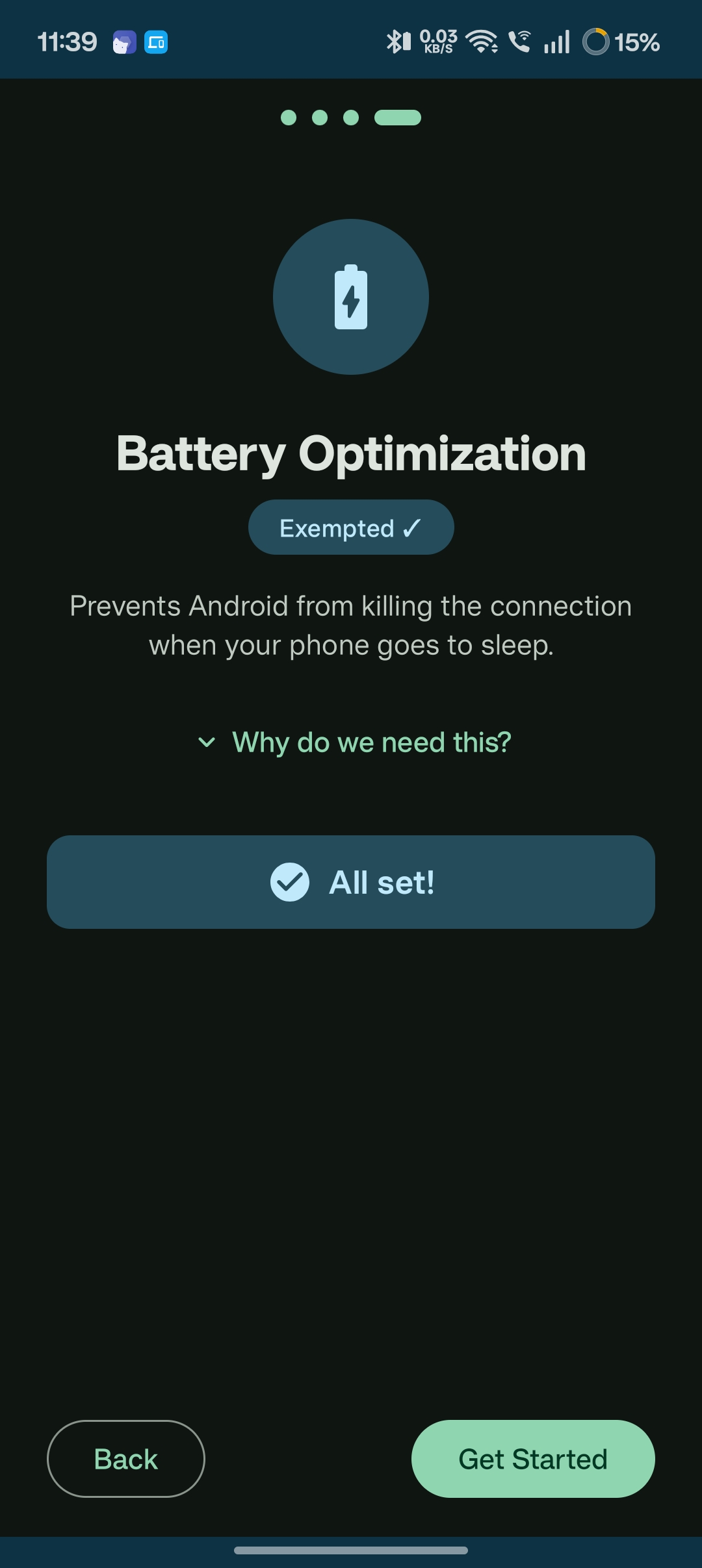
Symptom: Input Leaf disconnects whenever the phone sits idle for a few minutes.
Solution: Prevent aggressive OEM task killers from killing the background socket:
- Samsung (One UI): Settings → Apps → Input Leaf → Battery → choose Unrestricted.
- Xiaomi (HyperOS / MIUI): App Info → Battery saver → choose No restrictions, and toggle Autostart ON.
- OnePlus / Oppo (ColorOS): App Info → Battery usage → enable Allow background activity.
Network & Firewall Commands
If your PC server is not being discovered over Wi-Fi, verify that port 24800 (TCP) is open:
# Linux (UFW)
sudo ufw allow 24800/tcp comment 'Input Leap / Deskflow'

# Windows (Run as Administrator in PowerShell)
New-NetFirewallRule -DisplayName "Input Leap KVM" -Direction Inbound -LocalPort 24800 -Protocol TCP -Action Allow
Still Having Trouble?
If your issue isn't covered above, feel free to report it on our GitHub Issues tracker.
Common Questions