Prerequisites Checklist
Before beginning, make sure both your computer and your Android device are connected to the same local network:
On your Computer
- Input Leap (v3.0.2+) or Deskflow installed
- Connected to your local Wi-Fi router or Ethernet LAN
- TCP port 24800 open in firewall
On your Android Device
- Input Leaf APK installed (Android 8.0+)
- Connected to the same local Wi-Fi subnet
- Optional: Shizuku active for hardware shortcuts
Step-by-Step Visual Setup Guide
Follow these steps to configure your desktop server and connect your Android phone:
Configure Desktop Server Screen Layout
Open Input Leap or Deskflow on your PC in Server Mode and click Configure Server... to edit your screen layout grid:
- Drag a new screen icon from the top tray into the grid.
- Position it where your phone or tablet is physically located on your desk (e.g. to the right of your primary PC monitor).
- Double click the new screen icon and set its Screen name to match the client name displayed in the Input Leaf app (e.g.,
input-leaf). - Click OK, then click Apply or Start.
Setup note: Drag the phone around the server. The screen name in your PC grid (input-leaf) must match the client name in the Input Leaf Android app exactly.
Grant Overlay & System Permissions
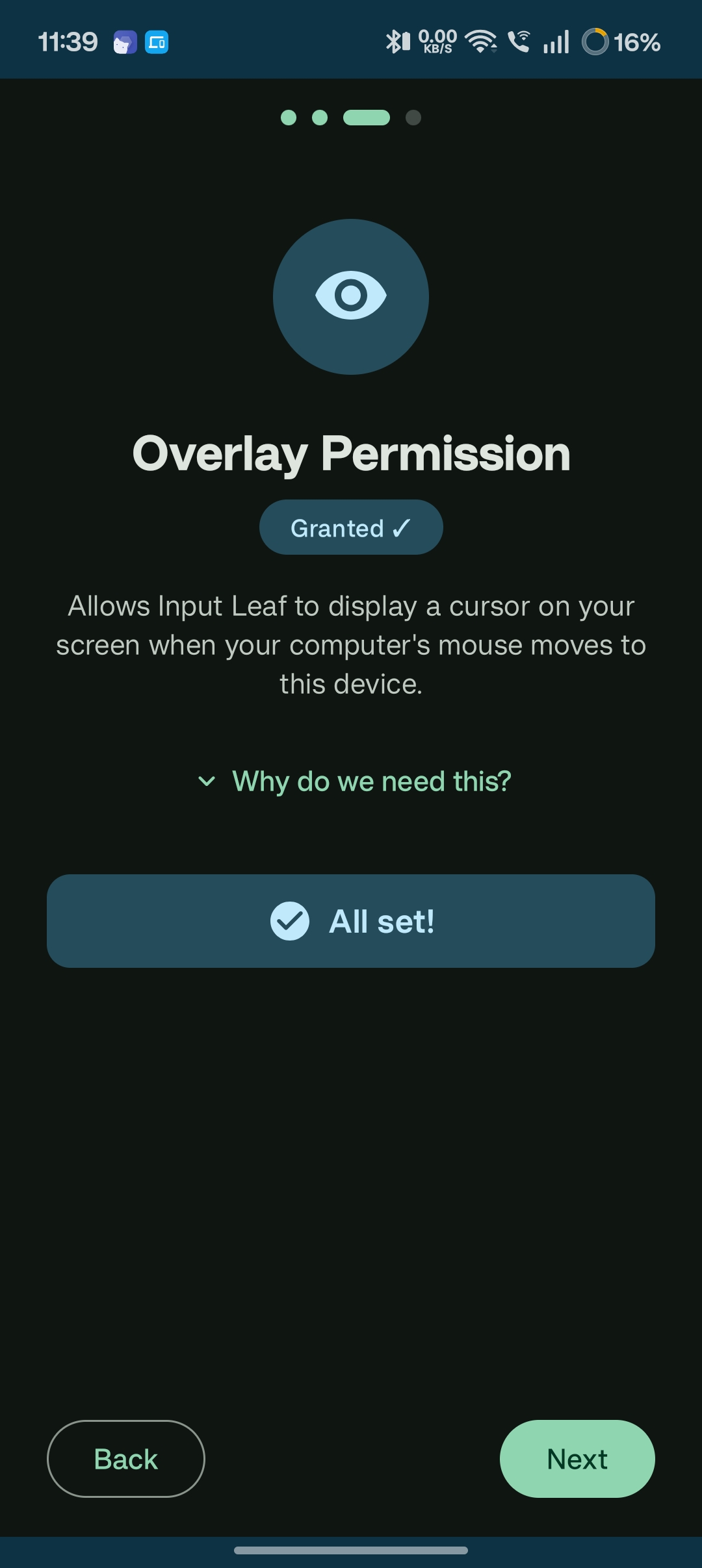
Launch Input Leaf on your Android phone or tablet. The guided setup wizard will request permissions necessary to render the mouse cursor and handle input:
- Display Over Other Apps (Overlay): Allows Input Leaf to render the custom leaf cursor across your Android home screen and inside any running third-party app.
- Tap Grant Permission and toggle Allow display over other apps to ON.
Zero Tracking: Input Leaf uses this permission exclusively for rendering the on-screen mouse pointer.
Choose Input Injection: Shizuku or Accessibility
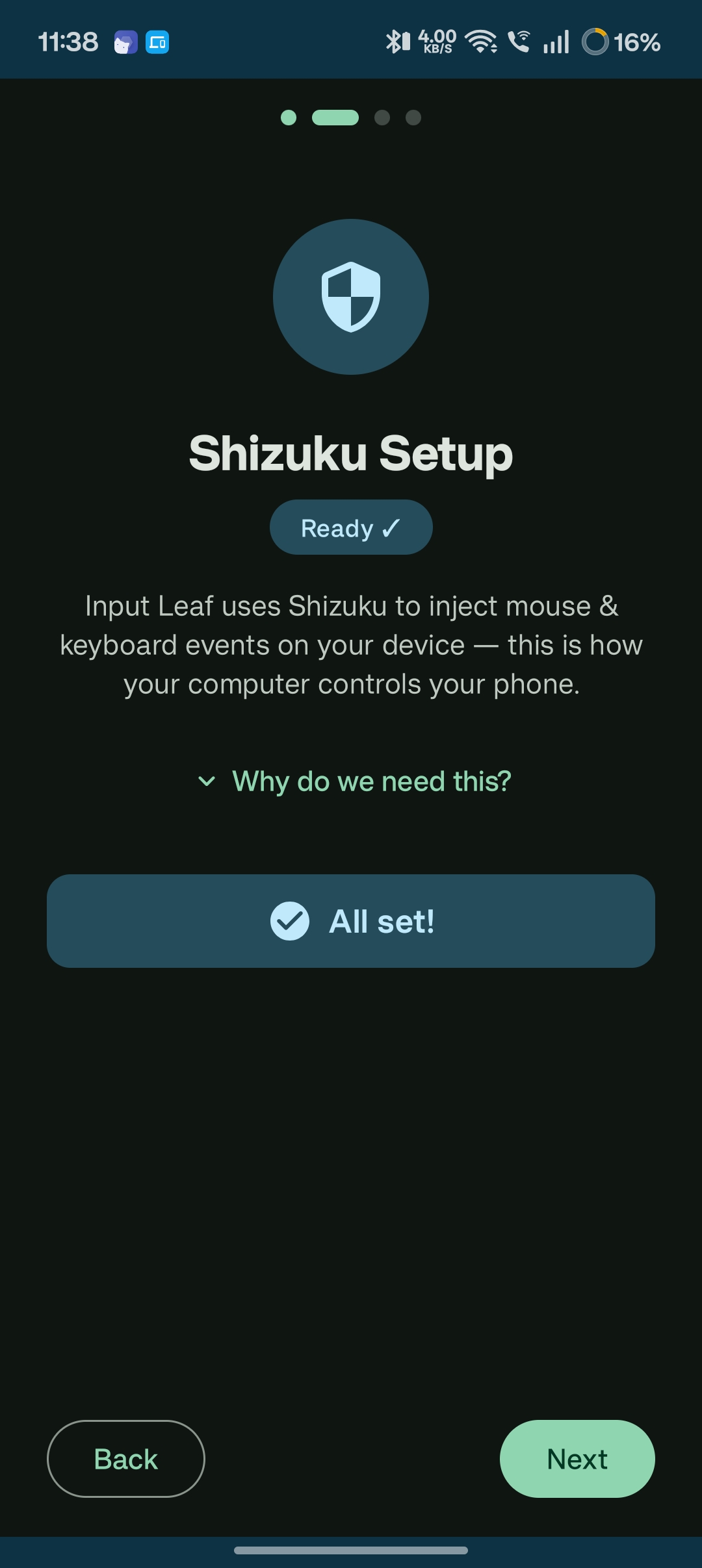
Input Leaf supports two distinct methods for injecting mouse and keyboard events into Android:
- Shizuku Mode (Recommended): Uses rootless ADB developer shell privileges (UID 2000). Provides true hardware-accurate mouse movement, right-click, and full modifier keys (Ctrl+A, Ctrl+C, Alt+Tab, Escape).
- Accessibility Service (Instant Fallback): Quick setup without installing Shizuku. Works through standard Android accessibility APIs for basic typing and clicking.
Connect to PC & Accept TLS Certificate
On the Input Leaf home screen, your computer's server will appear automatically under Discovered Servers via local mDNS:
- Tap your server name to initiate the connection.
- If mDNS is blocked by your router, tap Manual Connect and enter your PC's local IP address (e.g.
192.168.1.150) and port24800. - Trust-On-First-Use (TOFU): Input Leaf will display your PC's SHA-256 certificate fingerprint. Verify it matches your PC server window, then tap Trust & Connect.
# Windows PowerShell
ipconfig | findstr IPv4

# macOS / Linux
ip route get 1.1.1.1 | awk '{print $7}'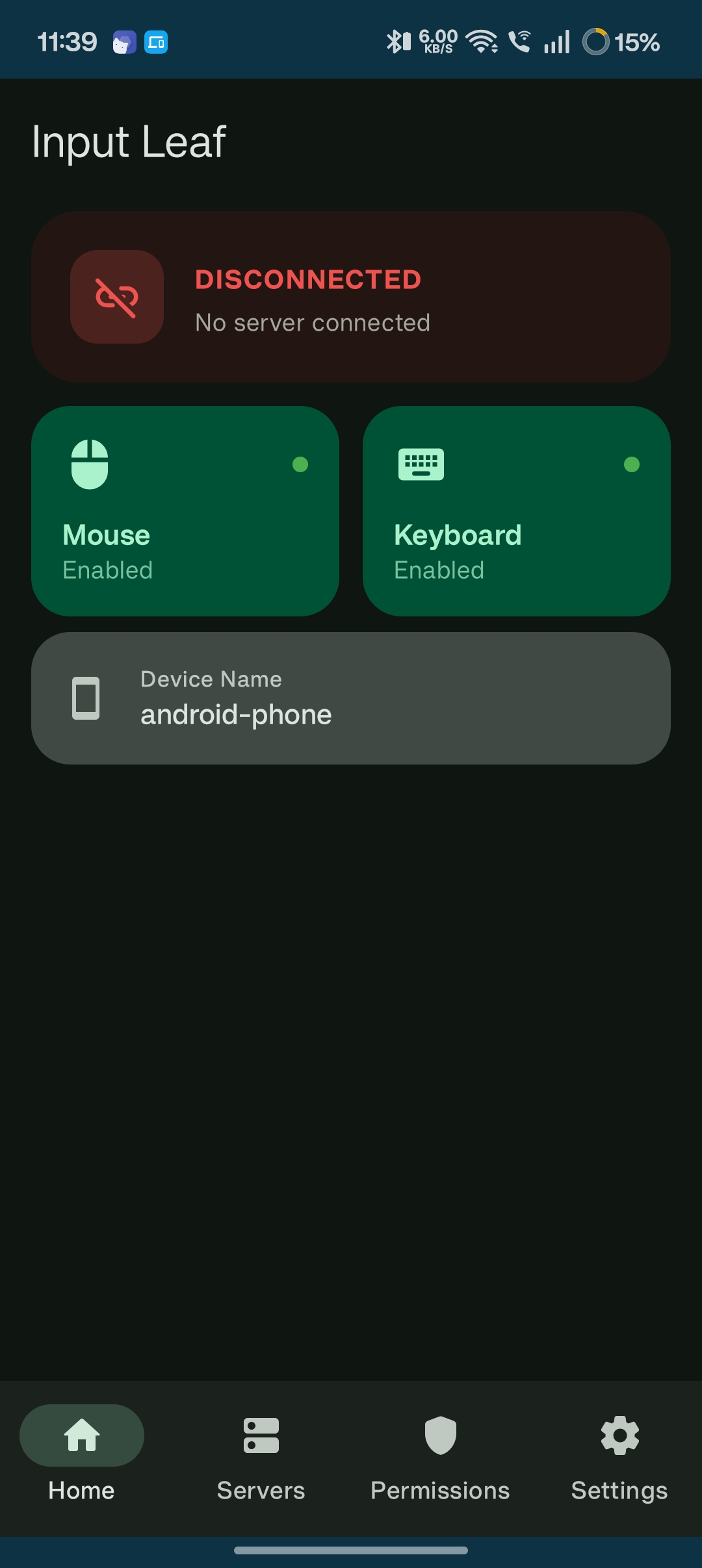
Prevent Background Disconnects
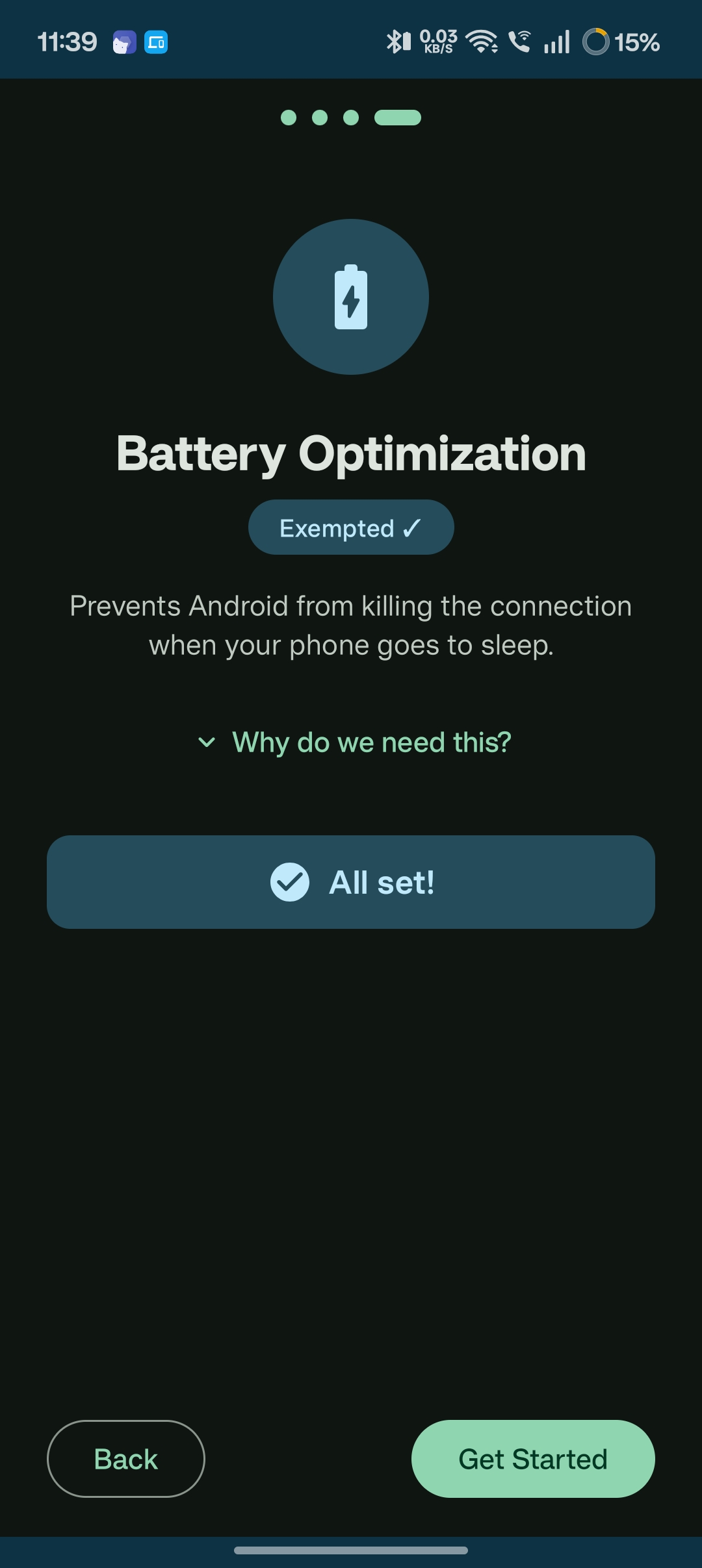
Many Android phone manufacturers (Xiaomi, Samsung, OnePlus) aggressively kill background processes when screens sleep:
- Tap Allow Background Activity in Input Leaf's setup prompt.
- In your phone's App Info, change Battery usage from Optimized to Unrestricted.
- On Xiaomi / MIUI devices, enable Autostart and lock the app in the Recents overview.
See device-specific fixes in our Troubleshooting Guide.
Screen Name, Security, and Cursor
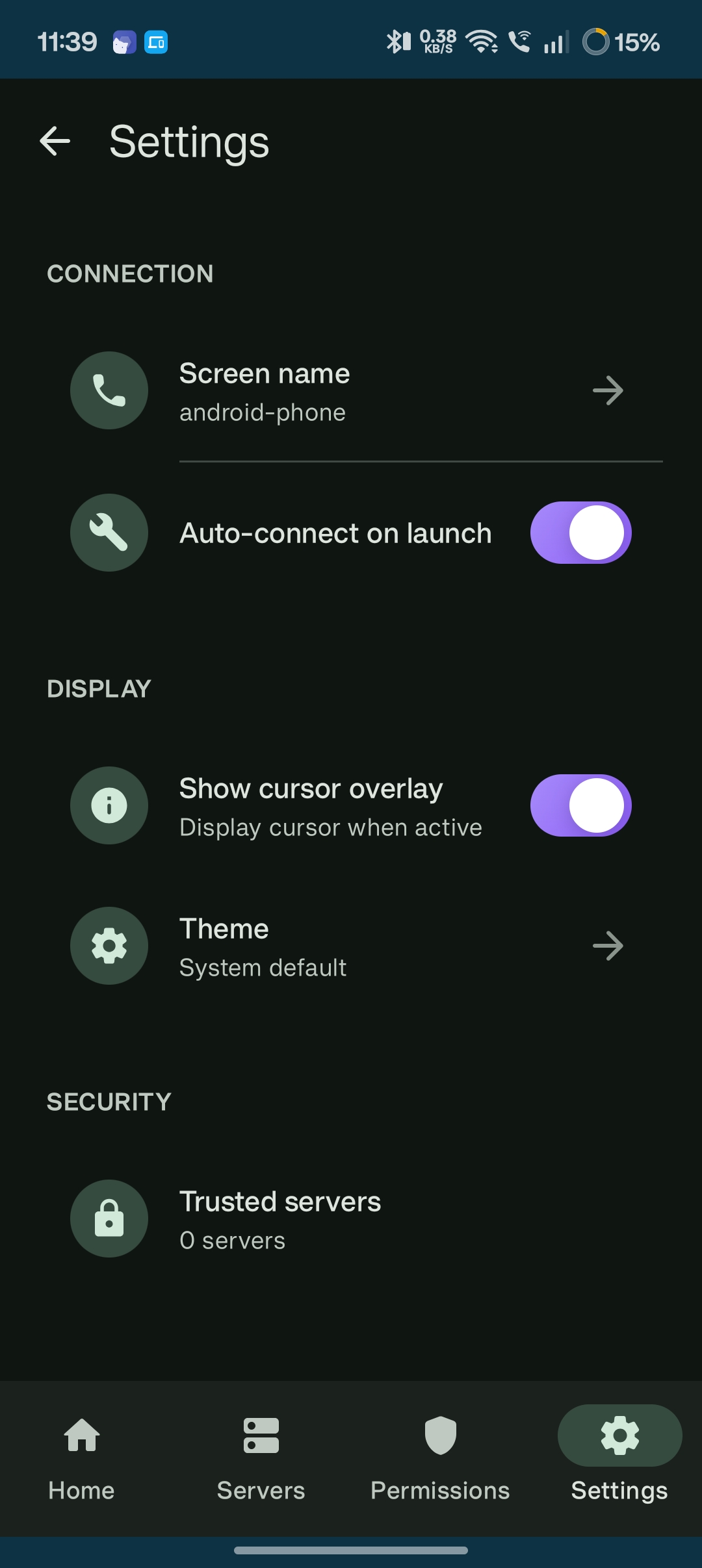
Open Settings in Input Leaf to match the phone to your server and choose how the session connects:
- Screen name: This must match the screen name in the Input Leap or Deskflow grid.
- Connection security: Auto, TLS only, or plain TCP. Settings also shows this phone's certificate fingerprint for Deskflow.
- Cursor style: Switch between the branded leaf pointer and the Android default cursor. Favorites stay on the home screen, not in Settings.
Common Questions