
Desktop Integration
Input Leap Android Client
Companion client for Input Leap v3.0.2+. Move your cursor between Windows, macOS, or Linux and Android effortlessly.
Input Leap Guide →Your PC mouse and keyboard, on Android.
Move your cursor past the physical edge of your desktop screen: it seamlessly continues on your phone or tablet over local Wi-Fi. Free, open source, and zero root required.

Dedicated Documentation
Whether configuring Input Leap on Windows, connecting to Deskflow on Linux, or setting up wireless Shizuku on Android 15, explore our focused walkthroughs:
Companion client for Input Leap v3.0.2+. Move your cursor between Windows, macOS, or Linux and Android effortlessly.
Input Leap Guide →Native Android endpoint for Deskflow setups. Clean configuration, low-latency pointer translation, and instant reconnect.
Deskflow Guide →Type WhatsApp messages, notes, and emails directly on your phone using your computer mechanical keyboard and mouse.
Productivity Guide →Inject system-level HID events via Android wireless debugging. Unlocks native Alt+Tab, Meta keys, and middle mouse click.
Shizuku Setup Guide →Compare zero-latency direct KVM against battery-draining screen mirroring like scrcpy or clunky Bluetooth multi-pairing.
Compare Solutions →Step-by-step solutions for port 24800 firewall blocks, cursor lag, mobile hotspot pairing, and OEM battery sleep exceptions.
Troubleshooting Solutions →Interactive Walkthrough
Input Leaf connects your Android device as an additional physical screen next to your desktop. Follow these 3 visual steps to get your mouse and keyboard gliding across screens in minutes.
Open Input Leap or Deskflow on your PC in Server Mode and click Configure Server... to edit your virtual screen grid.
input-leaf (or match the client name in the Android app).Setup Note: The screen name in your PC grid (input-leaf) must match the client name in the Input Leaf Android app exactly.
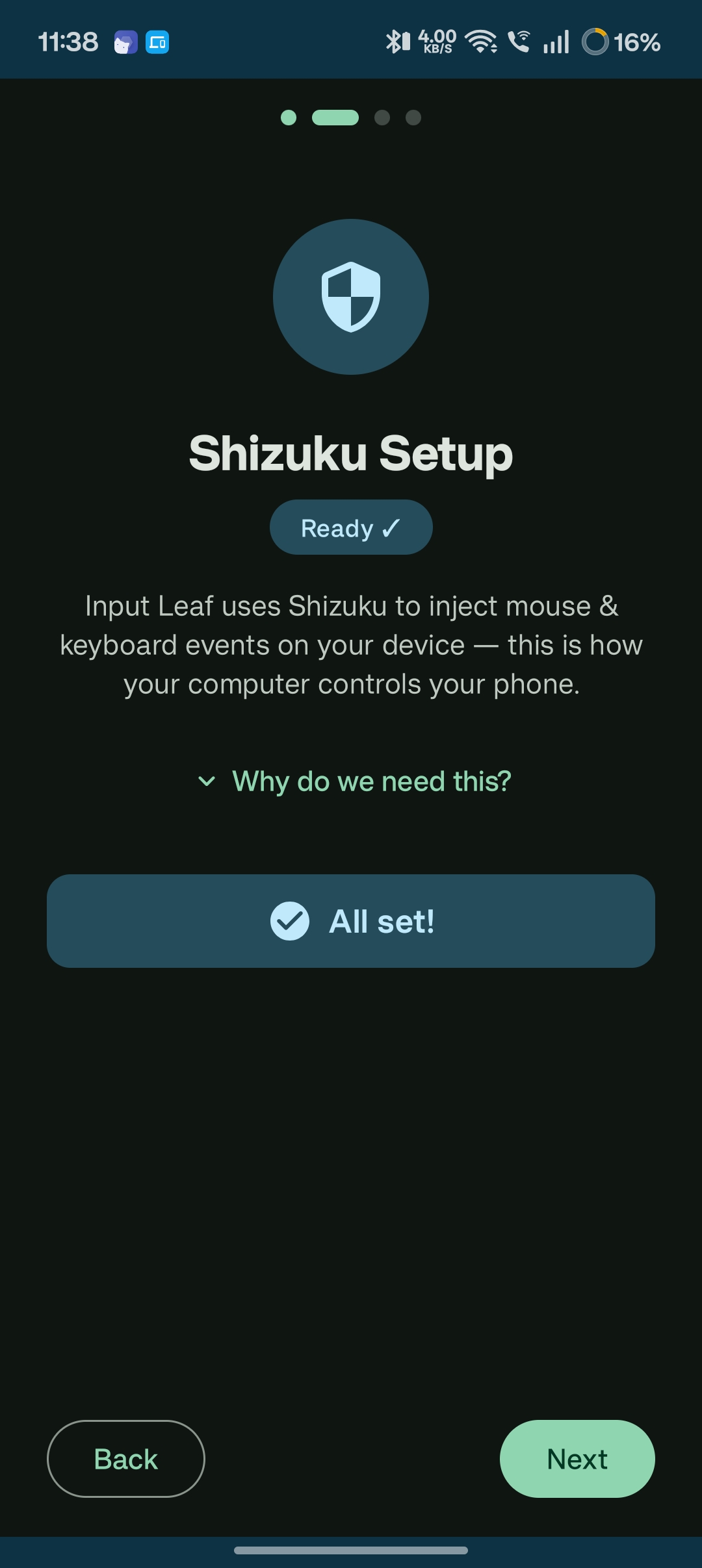
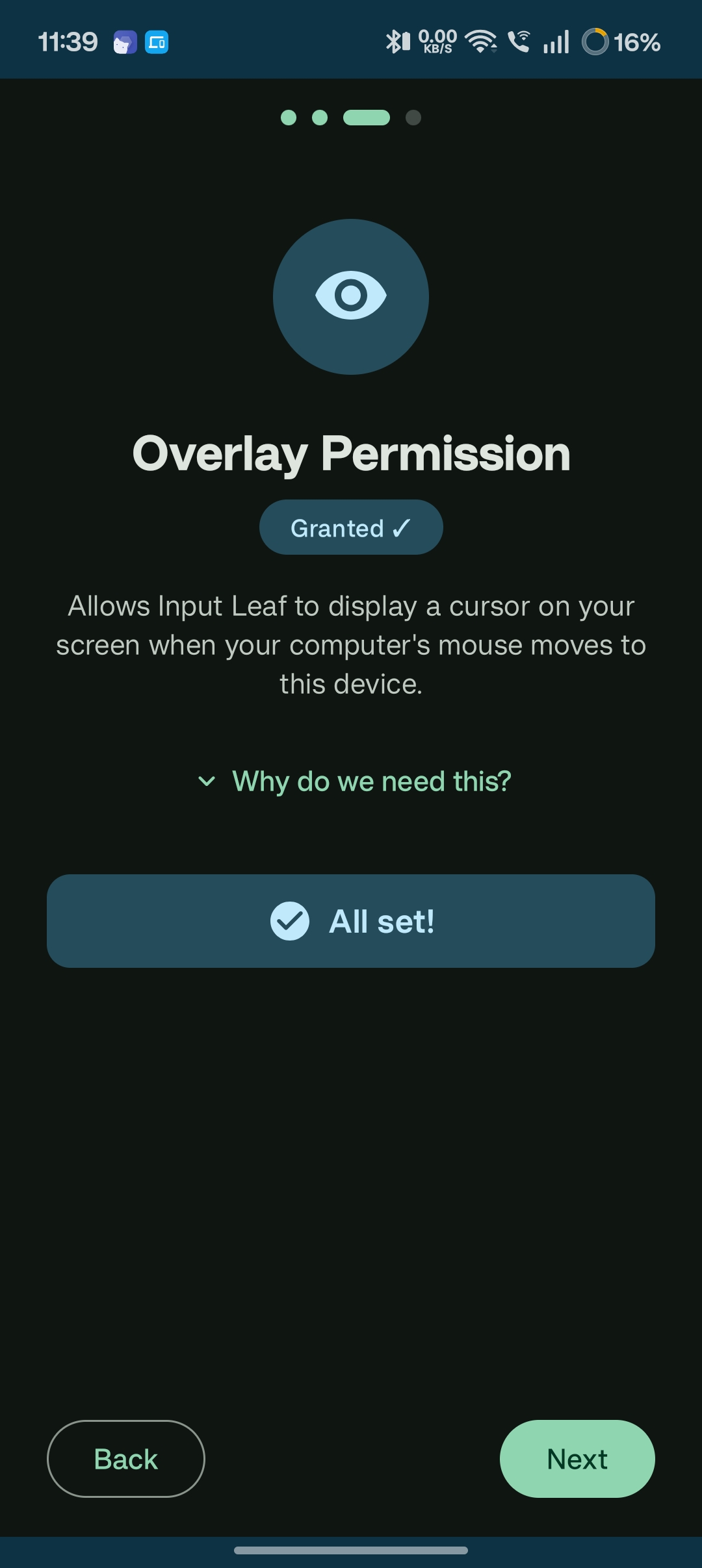
Install the APK on your Android phone and complete the guided permission wizard for seamless cursor rendering and key event injection.
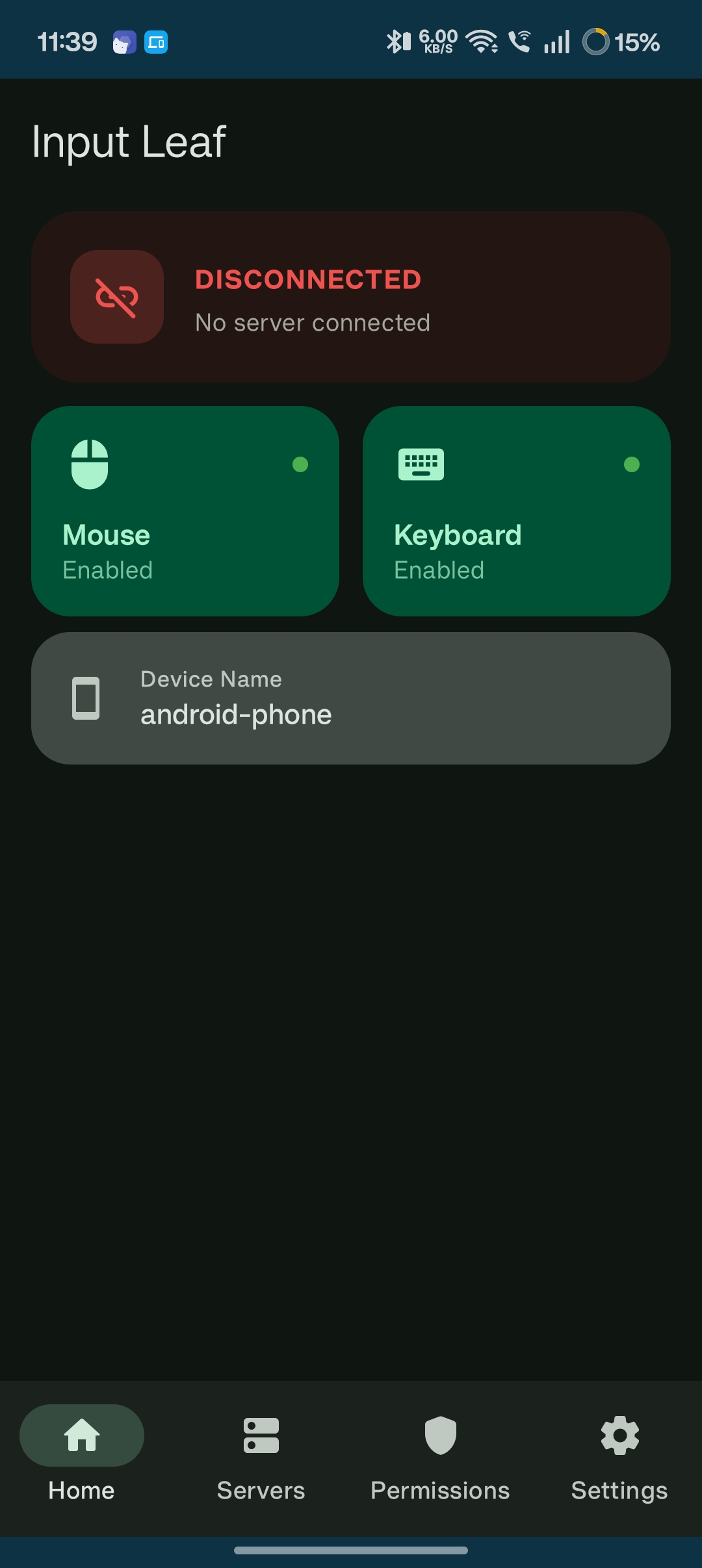
With both devices on the same Wi-Fi subnet, connect with one tap and start navigating across screens with your computer mouse and keyboard.
Visit our dedicated setup documentation covering port 24800 configuration, mobile hotspot pairing, multi-monitor geometry, and OEM battery sleep exceptions.
Visual Experience
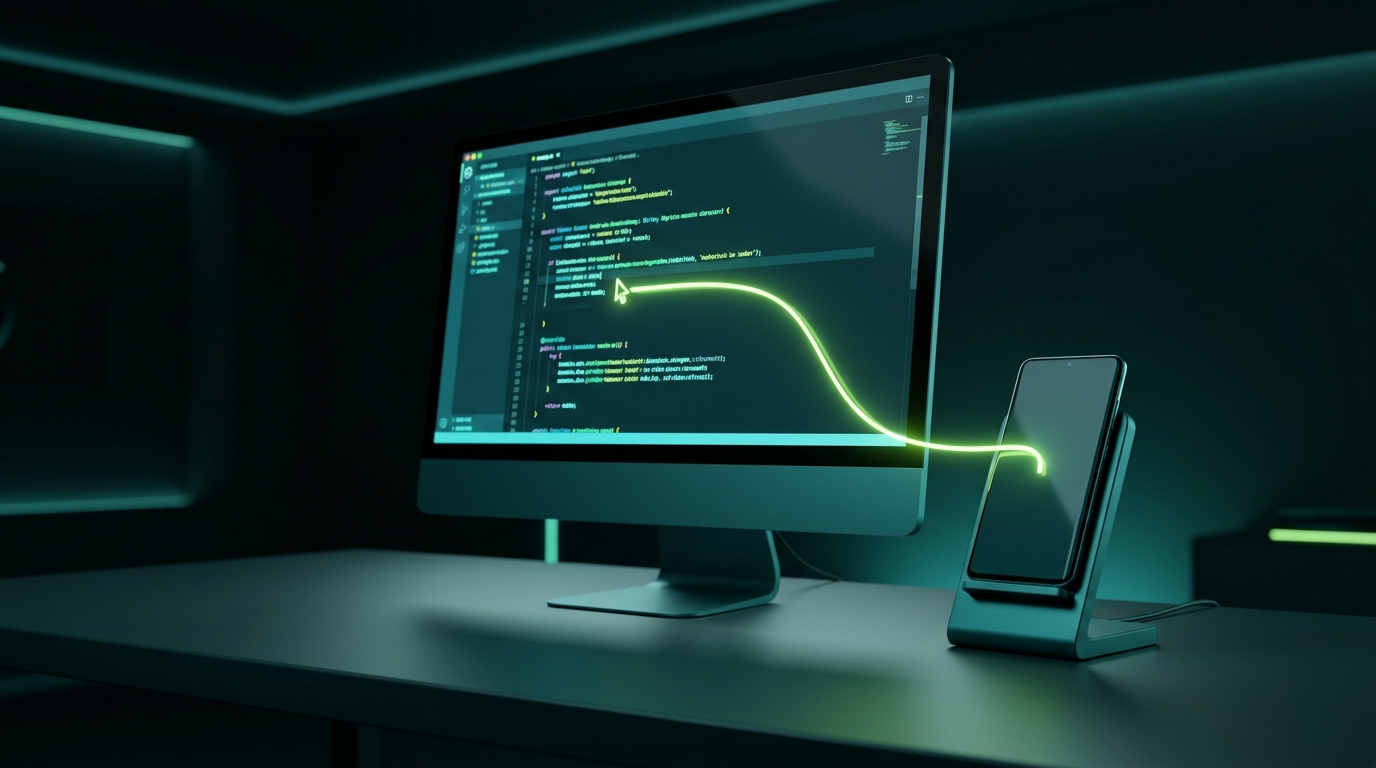
Move your cursor effortlessly between your primary computer display and your phone. No cables, no video compression lag, and zero root required.
Want to showcase your personal multi-monitor desk setup or screen recording? Drop an MP4 or WebM video into public/videos/demo.mp4 or add device screenshots into public/screens/ to stream live playback right here.
Demo
Input Leaf relies on Input Leap on your PC. Same Wi‑Fi: move past the screen edge and control continues on Android.
Input LeafListening on Wi‑FiLinked to PCNo root
Pick performance or pure plug-and-play. Both keep your device unrooted.
Recommended
System-level mouse and keyboard injection with the lowest latency. Hardware-style shortcuts like Alt+Tab and Meta+D work natively.
No extra apps
Enable Input Leaf in Accessibility and select the Input Leaf keyboard. Works on stock Android with honest tradeoffs.
Inside the app
Real screenshots from the phone. Tap a thumbnail or use the arrows: the label below stays put while the carousel moves.
India · UPI tip
Input Leaf (and Shizuku) are sideloaded, not Play Store-signed. On many Indian phones, Paytm, PhonePe, BHIM and similar UPI apps treat that as suspicious and block or warn about payments.
Sideloaded Input Leaf / Shizuku aren’t Play Store-signed. Paytm, PhonePe, BHIM and similar UPI apps often mark them suspicious.
Accessibility mode has another catch: while Input Leaf’s Accessibility service is on, several UPI apps refuse payments entirely. Turning Accessibility off to pay means losing input until you turn it back on.
Use your phone’s built-in Hide apps / App locker so Input Leaf (and Shizuku, if you use it) disappear from the launcher and look less “unsigned side-load” to banking apps without uninstalling. This tip is especially relevant for Indian UPI users.
Shizuku users: hide both Input Leaf and Shizuku. Accessibility-only users: hide Input Leaf; you may still need to toggle Accessibility when a UPI app complains.
Hide path by phone skin
Native hide is not on every device. Pick your brand: paths vary by OS version.

Settings → Privacy → Hide apps / App locker (wording varies by version).
Same BBK family patterns as ColorOS: check your OxygenOS build.
If your skin isn’t listed, search Settings for “Hide apps” or “App locker.” Hiding is optional: only needed if banking/UPI apps flag sideloaded tools.
Craft
Quiet reliability so edge-crossing feels inevitable, not fragile.
Scan your LAN for Input Leap hosts, or connect by IP in one tap.
Pin the machines you use every day for one-tap reconnect.
Network blips recover with exponential backoff so sessions stay alive.
Certificate pinning keeps the Input Leap link intentional and encrypted.
A built-in wizard walks through permissions and input methods.